AI Screenshot Editor • Powered by GPT Image 2

Edit Text in Screenshot with AI

Replace any label in an app or website capture while the UI font, spacing, status bar and layout stay pixel-perfect. The fastest way to localize, mock and fix screenshots — no design tools required.

Upload an image to edit its text

Click to browse or drag & drop — the crop tool opens automatically

JPGPNGWEBPUp to 24MB
✒️
Font-preserving
Same typeface & weight
🧲
Context intact
Background untouched
⚡
30–90 seconds
GPT Image 2 engine
🔓
Commercial use
Download & own it
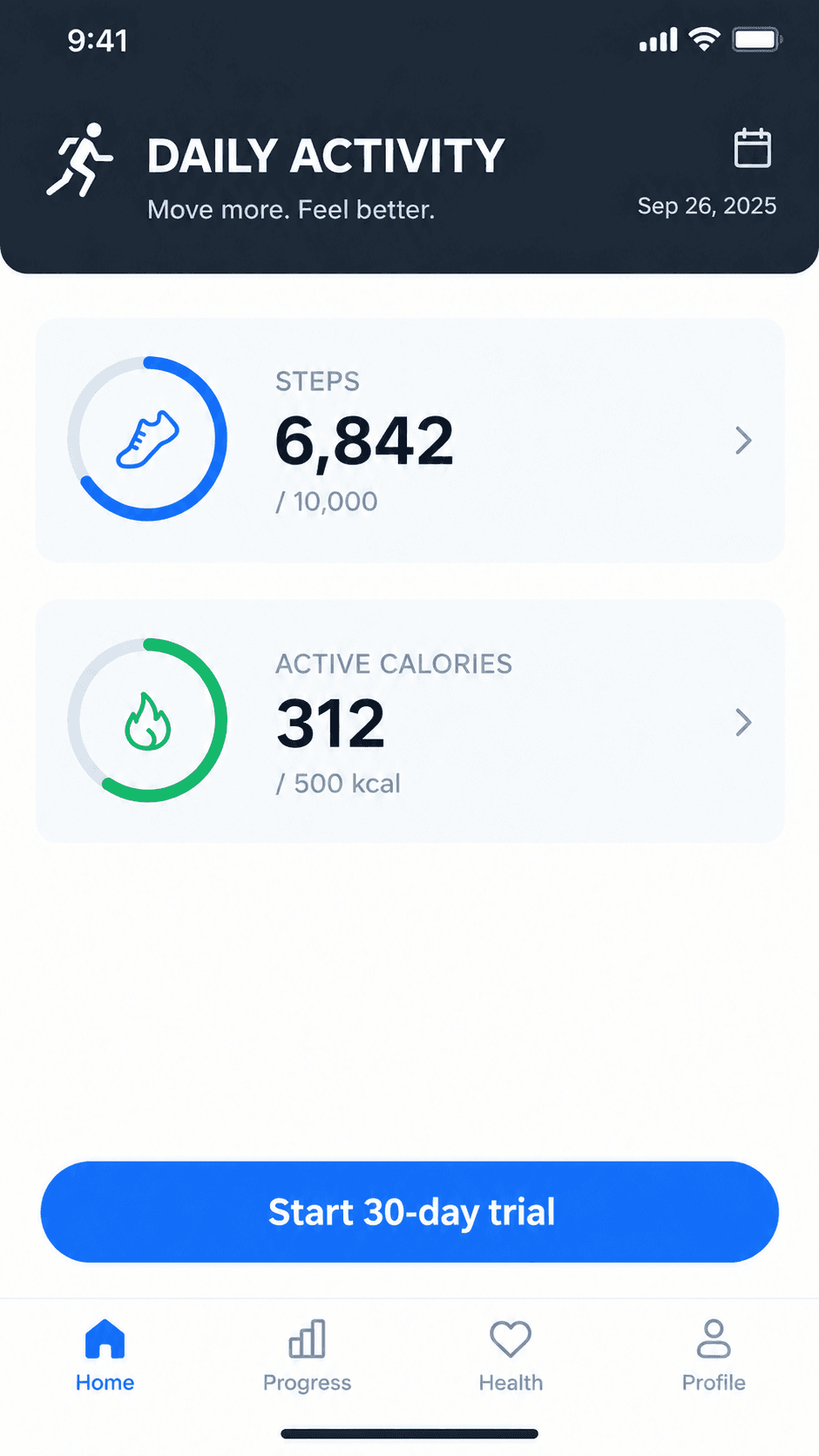
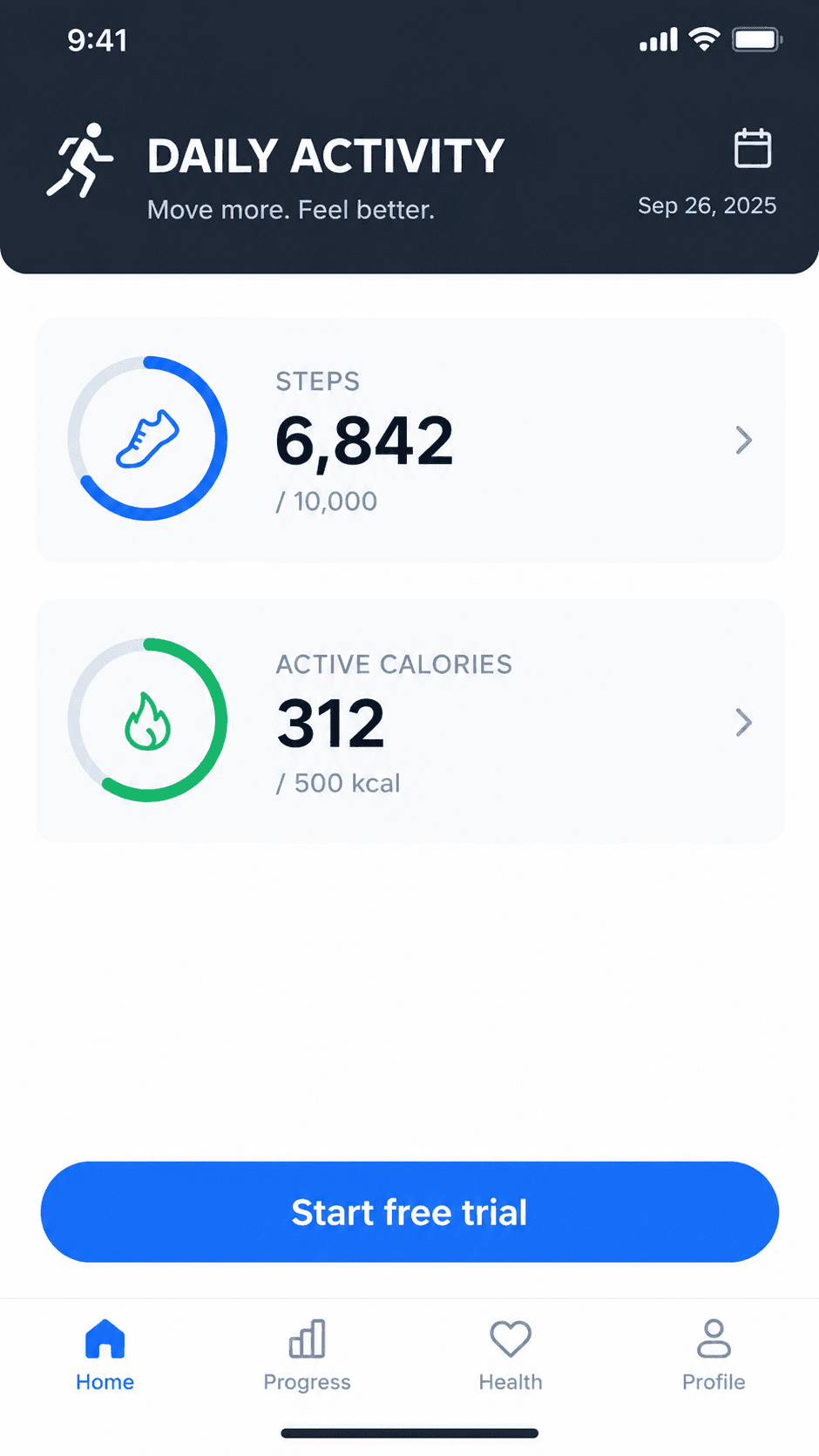
To edit text in screenshot captures, upload the image, type the original UI label and its replacement, and generate. The AI screenshot editor re-renders the words in place — matching the interface font, weight, color and alignment — while the status bar, icons and layout remain untouched. It is the standard workflow for app localization, listing mockups and documentation.

AI screenshot editor — before & after example

Original image (faded)Image one
Original with background (faded)Image two

Drag the slider to compare. UI fonts, spacing and chrome stay pixel-perfect while the labels change.

Edit text in screenshot files for every team

One AI screenshot editor covers localization, marketing, support and QA.

🌍

App Store localization

App Store screenshots must speak every market's language. Edit text in screenshot captures once per locale instead of re-staging devices for each one.

🧪

Marketing mockups

Show a feature that ships next quarter. Edit text in screenshot mockups to present realistic UI before the build exists.

📚

Documentation & tutorials

Keep help-center images current. Edit text in screenshot captures when a label changes, and skip re-capturing every step.

🐞

Bug reports & QA

Annotate the expected state. Edit text in screenshot attachments to show the correct behavior next to the buggy one.

🗣️

Sales & onboarding decks

Generic demo data reads better than 'Test User 123'. Edit text in screenshot slides to match each prospect's terminology.

🌐

Website A/B previews

Preview headline variants in a real browser frame. Edit text in screenshot captures to test copy before shipping an experiment.

What makes this AI screenshot editor different

Screenshot text sits in a structured interface — fonts are clean, spacing is precise, and mistakes are obvious. The editor is tuned for exactly that environment.

UI font matching: System fonts, weights and letter spacing are reproduced so the new label belongs to the interface.
Status bar aware: Instruct the model to leave time, battery and carrier untouched while it edits text in screenshot content areas.
Layout preserved: Buttons, paddings and alignments stay where they are — only the words change.
Multi-label edits: Change headings, buttons and hints in a single pass with the instructions field.
Dark & light mode: Both themes render correctly, including subtle backgrounds and hairline dividers.
One credit per edit: Free credits for new accounts — edit text in screenshot files without a subscription.
How to edit text in screenshot captures Background

How to edit text in screenshot captures

01

Upload the capture

Drop in your app or website screenshot — phone, tablet or desktop. Crop to the relevant panel for tighter accuracy.

02

Type the label change

Enter the original UI text and the replacement. Add instructions for extra labels or regions to leave untouched.

03

Generate & export

The AI screenshot editor re-renders the text in place. Download the localized or updated capture at full quality.

Why editing screenshot text is different from editing photos

When you edit text in screenshot captures, you are working with the cleanest typography in digital imaging: crisp system fonts, straight baselines, flat backgrounds and exact spacing. That precision is a gift for an AI screenshot editor — there is no perspective to solve and no film grain to fight — but it also raises expectations. A one-pixel baseline shift that would be invisible in a photo is obvious in an interface.

That is why this editor treats screenshots as structured scenes rather than photographs. The model reads the interface hierarchy around the target label — the button chrome it sits in, the column it aligns to, the caption beneath it — and re-renders the replacement with the same weight and spacing. When you edit text in screenshot files for localization, the result keeps the exact composition App Store reviewers and design systems expect.

Localization teams feel the difference most. A ten-locale listing used to mean ten capture sessions across devices and languages; now it is one session plus ten label swaps. Because every locale edit starts from the same source capture, device frames and layouts stay identical across markets — exactly what store listings and documentation style guides require.

Getting pixel-perfect results

Upload the highest-resolution capture available — Retina or 2x/3x assets give the model sharp letterforms to match. If your screenshot contains sensitive data, crop it out first or replace it with placeholder text as part of the same edit.

When you edit text in screenshot captures, name the elements you are changing and the elements you are protecting. 'Change the button label to Get Started and the heading above it; keep the status bar and tab bar unchanged' produces far cleaner output than a bare find-and-replace, because the model knows the edit's boundary.

Finally, keep an eye on text length. A replacement twice as long as the original may need the surrounding chrome to stretch — if that matters, say so in the instructions ('shrink the font slightly to fit the button'). Small, well-scoped edits are the reason teams that edit text in screenshot files daily get away with minutes per locale instead of hours.

Edit Text in Screenshot — FAQ

Upload your capture, type the original words, type the replacement, and generate. The AI screenshot editor re-renders the text in place while keeping the UI font, alignment, status bar and surrounding interface untouched — so you can edit text in screenshot files without rebuilding the mockup.
An AI screenshot editor removes the three slowest manual steps: cloning out the old label, identifying the exact UI font, and re-aligning the baseline. When you edit text in screenshot captures here, the model reads the interface style and matches it automatically — a full localization pass takes minutes, not an afternoon.
Yes — that is one of the most common uses. App Store listings need screenshots in many locales. Instead of re-configuring devices for every language, capture once and edit text in screenshot images for each target market, keeping device frames, fonts and layouts identical across locales.
Yes. The editor handles light and dark interfaces, iOS and Android status bars, desktop windows and browser chrome. To edit text in screenshot captures with system UI (time, battery, carrier), add an instruction to leave the status bar unchanged and the model will focus on your app content.
In most cases, yes. UI text is usually crisp and high-contrast, which makes it one of the easiest cases for font matching. If a special typeface matters, mention it in the additional instructions — for example 'keep the SF Pro style' — when you edit text in screenshot captures.
Yes. Describe every change in the additional instructions field in one pass — buttons, headings, menu items and placeholders together. Editing text in screenshot files as a single scene keeps spacing and hierarchy consistent across all the labels you change.
Editing your own screenshots for localization, documentation, mockups or tutorials is fine. Do not edit text in screenshot captures to falsify a conversation, transaction, sender or timestamp, or to misrepresent what an app or website actually shows. Fraudulent edits are refused.
Retina and 2x/3x captures work best because the model can read and redraw letterforms precisely. Standard-resolution grabs are supported too. If a capture looks fuzzy, upload the largest version your device can produce before you edit text in screenshot regions.

More AI Photo Tools

Explore our complete AI photo toolkit — every tool works on the same upload, so you can chain multiple edits in a single session.

Edit Text in Screenshot Now

Localize, mock and fix captures — UI font and layout preserved