Same-Font Text Editing • Powered by GPT Image 2

Edit Text in Image with Same Font with AI

Replace any words in a picture and the new text is re-rendered to match the original typeface — weight, spacing, color and perspective included. No font hunting, no re-typing in an editor.

Upload an image to edit its text

Click to browse or drag & drop — the crop tool opens automatically

JPGPNGWEBPUp to 24MB
✒️
Font-preserving
Same typeface & weight
🧲
Context intact
Background untouched
⚡
30–90 seconds
GPT Image 2 engine
🔓
Commercial use
Download & own it
To edit text in image with same font matching, upload the picture, type the original words and the replacement, and generate. GPT Image 2 analyzes the original letterforms — typeface, weight, spacing, color and perspective — and re-renders the new text to match, so the edit looks like it was printed with the rest of the design. No font identification or manual re-typing required.

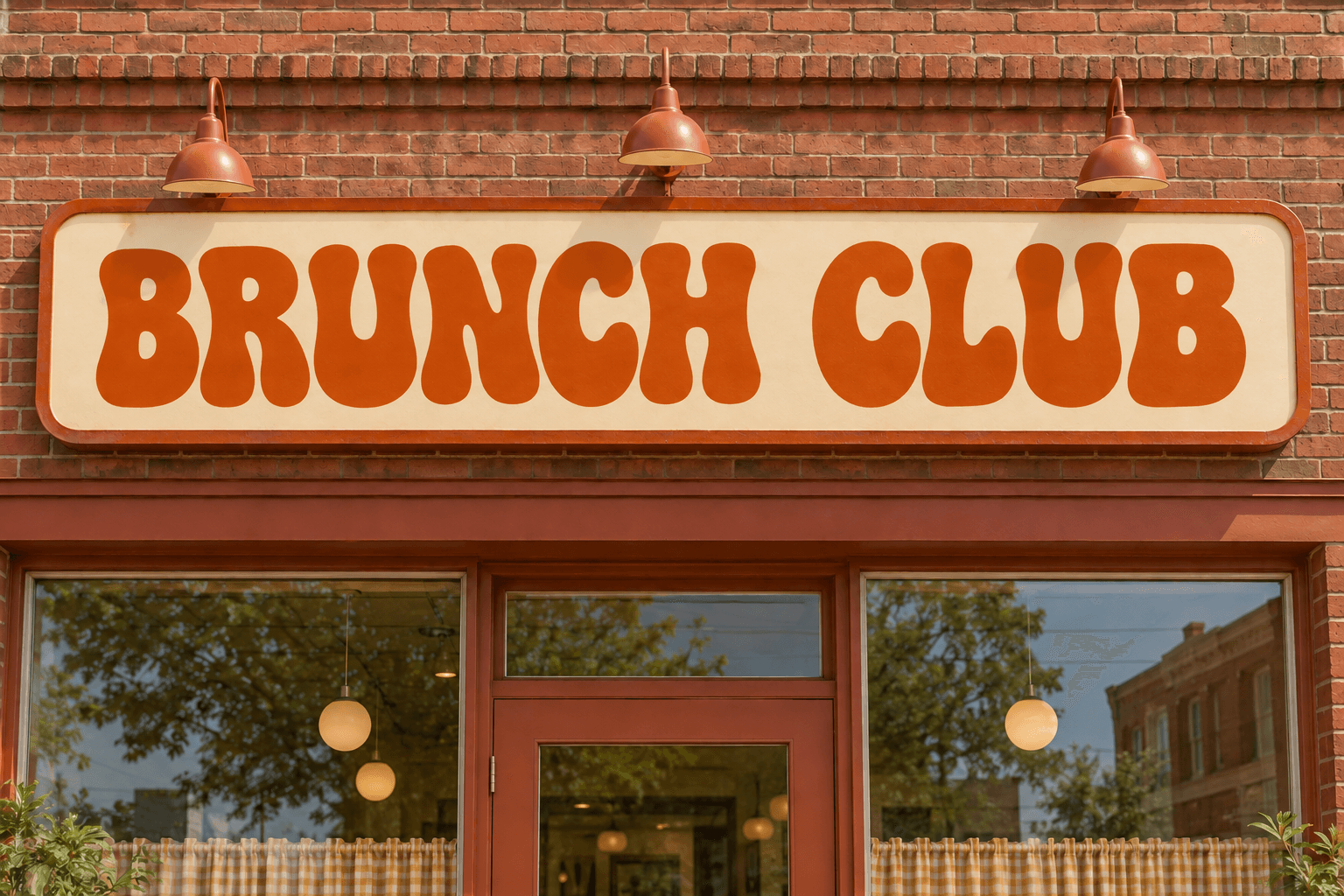
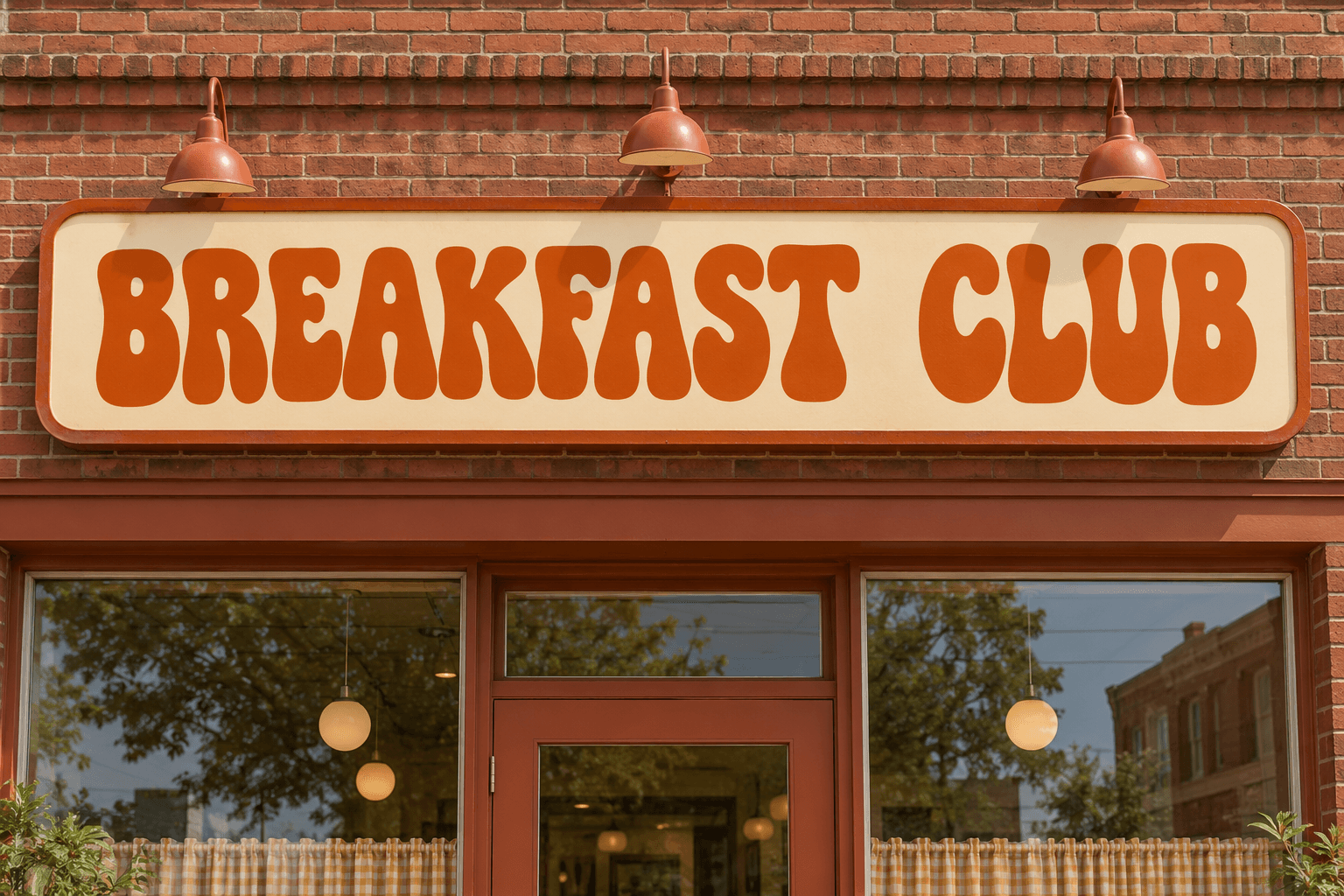
Edit text in image with same font — before & after example

Original image (faded)Image one
Original with background (faded)Image two

Drag the slider. The replacement 'BRUNCH CLUB' keeps the original retro groovy letterforms, color and sign texture.

Where same-font editing matters most

Any time the typeface IS the design, editing the words without keeping the font ruins the picture. This editor keeps it.

✓

Branded posters

Event posters set in a display face? Edit text in image with same font lettering and the new headline keeps the poster's personality.

🏷️

Packaging & labels

Change the flavor name or claim on a label while the brand's type system stays intact across the pack shot.

🪧

Signage in photos

Update the words on a photographed sign — storefront, menu board, vehicle — with matching perspective and wear.

🎽

Merch & apparel

Swap the slogan on a t-shirt mockup while the lettering style, fabric texture and shadows survive the edit.

🎭

Titles & credits

Fix a name in a stylized movie-poster or credit block where every glyph was hand-tuned.

🧾

Templates you reuse

One anniversary design, every year's new date — same font, same layout, new words in seconds.

How the same-font editor works

Matching a font is more than copying a name — it is reproducing how every glyph was drawn. This editor studies the original lettering and rebuilds your text in its image.

Glyph-level matching: Stroke weight, contrast, x-height, serifs and terminals are reproduced from the original lettering.
Spacing & baseline: Letter spacing, kerning pairs and baseline position carry over so lines keep their rhythm.
Color & effects: Gradients, outlines, embossing and shadows applied to the original glyphs are re-created on the new text.
Perspective aware: Text on angled or curved surfaces keeps its plane, so photographed lettering stays believable.
No font files needed: Skip the identify-buy-install loop — describe nothing, upload everything, get matched type.
Iterate to perfection: Feed any result back in for a second pass with font hints until the match is seamless.
How to edit text in image with same font kept Background

How to edit text in image with same font kept

01

Upload the sharpest version

Font matching depends on reading the original letterforms clearly. Upload the highest-resolution image you have — crop to the text region if it helps.

02

Type original & replacement

Enter the exact original text and the new text. Add a font hint in the instructions if the style has a name you know.

03

Generate & compare

The model re-renders the replacement in the matched typeface. Zoom in, compare, and run another pass with hints if you want a tighter match.

Why font matching is the hard part of editing text in images

Anyone can cover old text with a rectangle and type new words on top. The result instantly looks wrong, because the viewer's eye catches the typeface mismatch before it reads the words. Typeface is identity: a condensed slab serif says 'sports poster', a light geometric sans says 'tech startup'. When you edit text in image files, keeping that identity is the whole job.

Traditional tools force you to become a font detective: screenshot a glyph, query a font-identification service, hope the match exists in your library, buy it, re-type the line, then fix color, spacing and effects by hand. GPT Image 2 skips the detective work. It studies how the original glyphs were drawn and paints the replacement in the same style — which is why you can edit text in image with same font behavior even for custom lettering that was never a font file at all.

The model also inherits the context around the glyphs: the paper texture behind a printed headline, the neon glow around a sign, the stitch pattern in embroidered lettering. Those surface interactions are what make replaced text look pasted-in when they are missing, and native when they survive.

Getting the closest possible match

Resolution is the first lever. Give the model at least a few hundred pixels of text height to read stroke details; when only a small thumbnail exists, upscale first, then edit text in image with same font expectations. Second, type the original text exactly — including capitalization — so the model maps the right glyphs to your replacement.

Use the instructions field the way an art director would brief a type setter: 'keep the tight letter spacing', 'match the gold foil gradient', 'preserve the slight italic lean'. When you edit text in image files whose lettering is highly custom, one focused hint usually closes the gap between close and indistinguishable.

Finally, compare at 100% zoom rather than in the small preview. Baseline alignment and stroke weight reveal themselves up close. If something is off, run a second pass on just that line — iterative micro-edits are how professionals edit text in image with same font precision every time.

Edit Text in Image with Same Font — FAQ

Yes. GPT Image 2 studies the letterforms in your image — stroke weight, x-height, serifs, spacing and color — and re-renders the replacement text to match. When you edit text in image with same font matching, the new words inherit the original typeface instead of floating on top in a default system font.
Common sans-serifs, serifs, slab fonts, display faces, hand-lettering styles and most logo lettering. The model doesn't need to know the font's name — it redraws the glyphs to look like the ones already in your image. Exotic scripts and connected cursive are the hardest cases; feeding a high-resolution upload gives the best match.
No. Traditional workflows make you run a font identifier, buy the font, then re-type the text. Here you edit text in image with same font behavior built in — the matching happens automatically as part of the generation.
Yes — bold stays bold, condensed stays condensed, and letter spacing, baseline and color gradients across the glyphs are reproduced. If a specific attribute matters, add a note like 'keep the heavy bold weight' when you edit text in image files.
Yes. Signs, menus, packaging and clothing lettering can all be edited with the surrounding typeface matched, including perspective and lighting. Because the model repaints the region rather than pasting a text layer, photographed text keeps its realistic surface and shadows.
Add a font hint in the additional instructions (e.g. 'cursive script' or 'tall condensed sans'), upload a higher-resolution version, or run a second pass on the result. Small, single-line edits match most reliably — that's true for every tool that edits text in image with same font expectations.
You can adjust wording in your own logo or wordmark, and the model will follow the original lettering style. Custom lettering is redrawn in the same spirit rather than cloned glyph-for-glyph — for production logo files, still use a vector source when you have one.
New accounts get free credits and each edit costs one credit, so you can edit text in image with same font matching at no cost to try it. Larger packs and plans are available when you need volume.

More AI Photo Tools

Explore our complete AI photo toolkit — every tool works on the same upload, so you can chain multiple edits in a single session.

Replace Text, Keep the Typeface

Edit text in image with same font matching — powered by GPT Image 2